Even G2 Prep Notes vs Teleprompt: Key Differences
Explore how Even G2 Prep Notes and Teleprompt differ in preparation, prompting, flexibility, and delivery. Learn which workflow best supports confident presentations in 2026.
Even G2 Prep Notes vs Teleprompt: The Core Workflow Difference
Prep Notes supplies conversation context; Teleprompt follows a prepared script
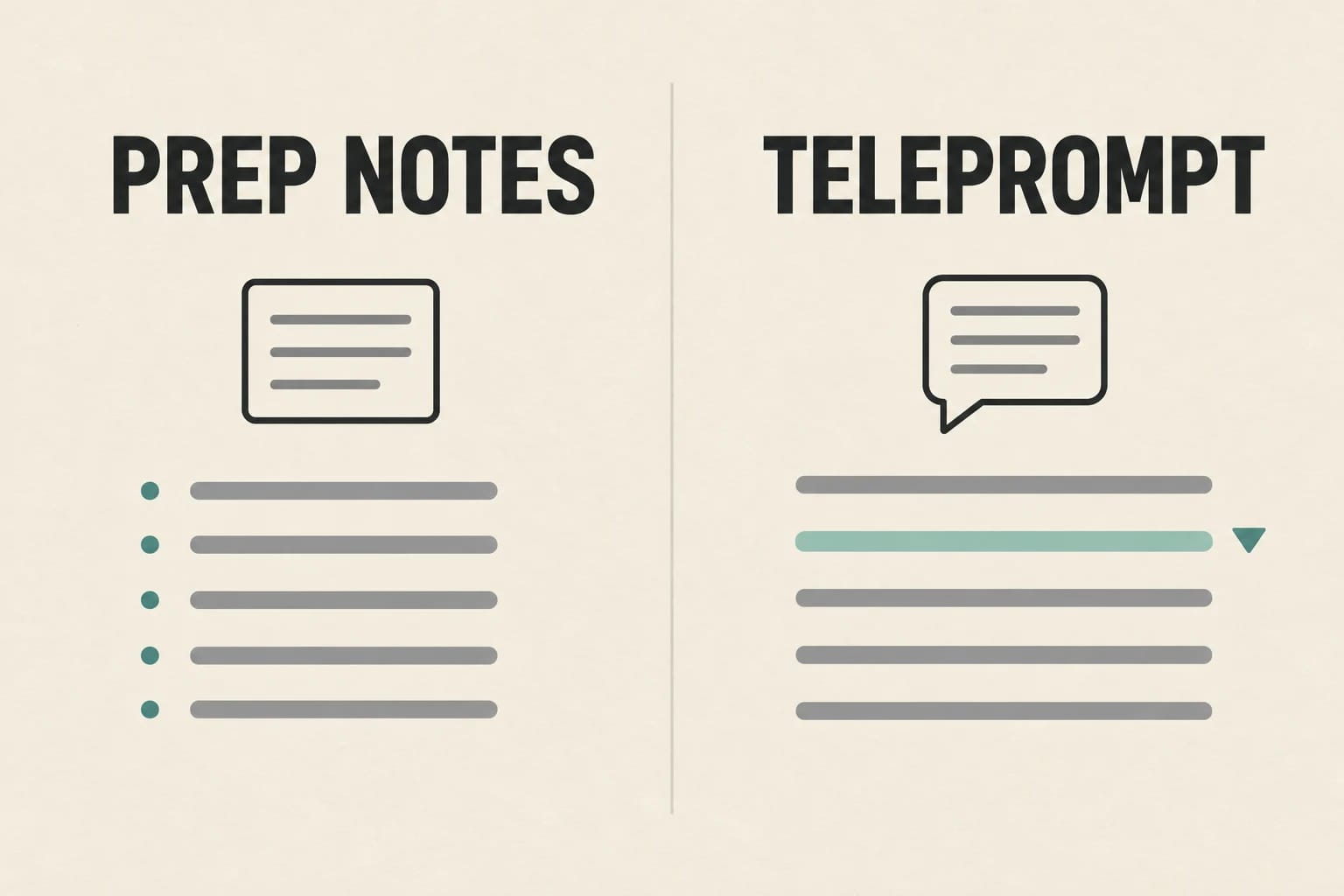
The practical choice in Even G2 Prep Notes vs Teleprompt comes down to what you need during the session: context for a changing conversation or exact wording for a planned delivery. Teleprompt is a script reader. Prep Notes works within Conversate, where you add background before a conversation so the system can use that context alongside live transcription and AI-generated suggestions.
Think of Teleprompt as the workflow for “say this next,” while Prep Notes is for “remember what matters as this discussion develops.” Those are related presentation needs, but they demand different preparation and different expectations from the presenter.
Choose based on whether the next words are planned or the discussion may change
If you need to deliver an opening statement, product demonstration, webinar segment, or formal remarks in a defined order, a prepared script gives you a stable path. If the audience may ask questions, introduce new priorities, or turn a presentation into a working meeting, concise context notes are usually more useful than trying to force a live discussion into a fixed script.
A simple test helps: could you comfortably hand the text to another presenter and expect them to read it word for word? If yes, start with Teleprompt. If the material is really a briefing—goals, names, facts, constraints, and possible questions—start with Prep Notes.
Quick decision: use a script for delivery and concise notes for open-ended dialogue
Use Teleprompt when you need controlled delivery. Use Prep Notes when you need to remain oriented without predicting every exchange. For a hybrid event, separate the two jobs: prepare a scripted opening, then move to a short briefing note for the discussion that follows. Trying to use one workflow for both can create more friction than it removes.
When Teleprompt Is the Better Presentation Workflow
Use a fixed script for speeches, demos, webinars, and formal remarks
Teleprompt makes the most sense when wording, order, and transitions matter. A keynote introduction, compliance-sensitive statement, webinar host segment, prepared demo narration, or executive announcement all benefit from a script that stays intact. Draft for speech rather than for reading: use short paragraphs, clear transitions, and spoken language that sounds natural when delivered aloud.
For a demonstration, write the script around visible actions: introduce the feature, pause for the action, explain the result, then move on. Avoid dense blocks of technical detail that make it hard to recover your place after an interruption.
Compare AI speech-following, fixed-speed Auto, and Manual modes
Teleprompt offers AI speech-following, a fixed-speed Auto mode, and Manual control. Speech-following is suited to a well-rehearsed script when your spoken wording closely follows the text. Fixed-speed Auto can suit deliberately paced remarks, while Manual control gives you direct control when you expect pauses, audience interaction, or deviations from the script. Official guidance also says AI-mode language support can depend on operating system and connectivity.
Prepare files and on-device access before going live
Give the final script an unmistakable file name and open it on the glasses before the event. Avoid relying on a last-minute edit with a vague title such as “final-new-2.” Keep the file limits in the comparison table below in mind when preparing the copy.
Keep the live script clean. Remove speaker notes intended only for your desktop, unnecessary formatting, and long reference sections. The goal is not to load every supporting document; it is to make the words you need easy to follow under presentation pressure.
Rehearse for pacing, transitions, and recovery when speech-following loses place
A rehearsal should include the actual opening, your expected pauses, one interruption, and a deliberate place-loss scenario. If speech-following does not stay aligned with your delivery, practice a calm recovery: finish the sentence you are speaking, use a familiar transition line, then resume from the next clear section heading.
Build recovery points directly into the script. Short headings such as “Problem,” “Example,” “Decision,” and “Next Step” are more useful than a continuous wall of prose. They help you re-enter the presentation without visibly searching for a paragraph.
When Prep Notes Is Better for Flexible Presentations and Meetings
Use short context notes when questions and discussion can redirect the session
Prep Notes is a better fit for a client discovery call, panel discussion, stakeholder workshop, interview, or interactive presentation. In these situations, the audience may change the sequence or ask for details you did not plan to cover at that moment. A short context note can keep the purpose and essential facts available without turning the conversation into a reading exercise.
For example, a hypothetical account review note could identify the client’s current goal, the three approved options, the key timeline, and topics that should not be promised during the meeting. That is more adaptable than a speech because it supports the conversation instead of trying to dictate it.
Set the purpose, audience, key facts, and boundaries before the conversation
A useful Prep Note is selective. Start with the session purpose, who is attending, the facts that must be accurate, and any boundaries that should guide the discussion. Add likely questions only when they are genuinely useful. A dense briefing dump can make it harder to identify the few details that matter when the conversation changes direction.
Use the file limits in the comparison table below when assembling the briefing. Cut unrelated background before upload, and check the resulting note against your approved facts.
Review AI-generated suggestions, summaries, and action items before relying on them
Conversate can provide AI suggestions during a session and retain a transcription, summary, and suggested actions after it ends. Treat all generated material as a draft, not an authoritative meeting record. Check names, dates, commitments, numbers, and implied decisions before sending follow-up or treating an action item as settled.
This review step matters most when the conversation includes commitments, negotiations, or details that can be misunderstood without context. Your own concise notes remain the reference point for what you intended to cover.
Prep Notes vs Teleprompt: File Limits and Preparation Differences
Compact comparison table: note capacity, supported files, and storage behavior
The file rules reinforce the core distinction: Teleprompt is designed around a compact, presentation-ready script, while Prep Notes can accommodate a larger briefing context.
| Workflow | Supported formats | Input limit | Storage or access behavior |
|---|---|---|---|
| Teleprompt | TXT, DOCX, PDF | 255 KB per file | Scripts are stored locally; uninstalling the phone app deletes them. The glasses menu shows up to 20 recently processed scripts. |
| Prep Notes | Typed text, TXT, DOCX, PDF | 5,000 typed characters, or up to five files per note at 5 MB each | One Prep Note per conversation; account storage is listed as 100 notes. |
Why a full speech and a briefing packet need different preparation
A full speech needs editing for delivery. It should be easy to scan, paced for speaking, and organized with reliable restart points. A briefing packet needs editing for retrieval. It should surface the audience, objective, key facts, limits, and unresolved questions without burying them in background material.
Do not simply import the same document into both workflows. Create a speech version for Teleprompt and a separate condensed meeting brief for Prep Notes. Each document should match the job it needs to do.
Create a clean backup copy on the intended phone before the event
Keep a clean backup copy of the final script or briefing outside the app on the phone you intend to use. Use clear version names and remove stale drafts before the event so the wrong file is less likely to be selected.
A short rehearsal checklist for the actual event
Use the final phone, glasses and files for this check. These are preparation suggestions, rather than a report of hands-on testing.
- Check the app and document. G2 uses the current Even Realities App, not the dedicated G1 app. Open the final script or briefing and verify its version, names and numbers.
- For Teleprompt, rehearse an interruption. Read a short passage at your normal pace, pause for a question and practice finding the next section. Even's guidance allows manual position adjustment while AI mode follows from the new position; test the control before relying on it.
- For Conversate, prepare before starting. Select the correct Prep Note, input language and microphone, then check phone internet access. The selected microphone cannot be changed during a running session.
- Practice the handover and fallback. For a scripted opening followed by questions, rehearse ending one workflow and opening the other. Keep essential remarks in a separate plain-text or printed copy so you can continue if a feature is unavailable.
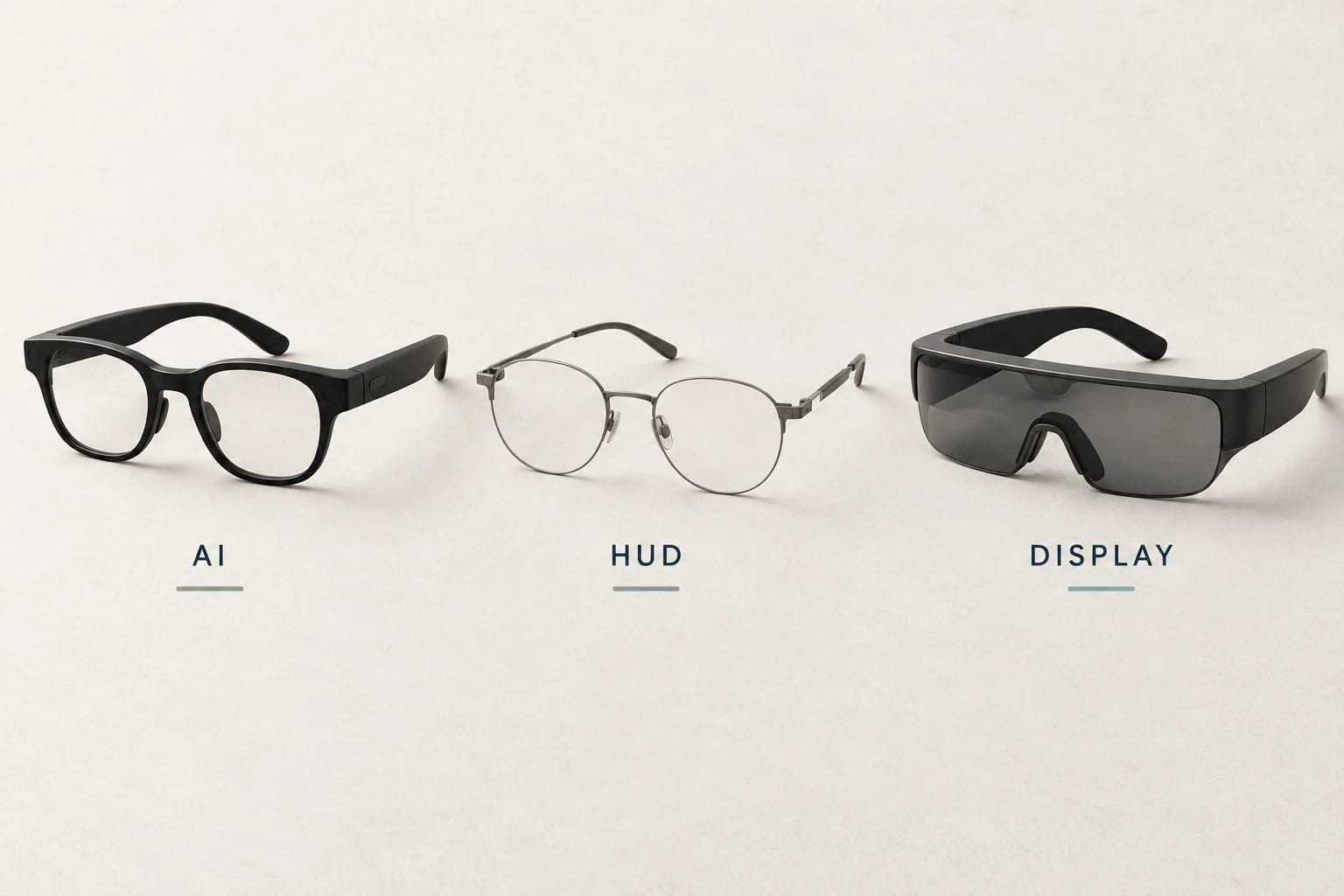
Still deciding on hardware? Check the Even G2 setup and prescription guide. If you mainly want photos or spoken answers, first compare the categories in AI glasses vs display glasses.
Presentation Privacy, Recording Expectations, and Final Checks
A private display does not remove audio, records, or consent considerations
A display that others cannot easily see does not mean the session has no audio capture, records, or privacy implications. Conversate can use a selected phone or glasses microphone and can produce transcriptions and summaries. Before using it in a sensitive meeting, consider what participants expect and what records may be created.
Check participant expectations and workplace policy before a session
For workplace meetings, client calls, interviews, and group discussions, check the applicable expectations and policies before enabling a conversation workflow. Make sure the people involved understand the format of the session and whether transcription or summaries are being used. Do not assume that an unobtrusive display resolves the concerns surrounding recorded conversation.
Verify generated cues, transcriptions, summaries, and suggested actions
Review generated cues during the session with judgment, then verify the transcript, summary, and suggested actions afterward. Correcting a mistaken name or deadline immediately is easier than allowing a flawed meeting recap to become the basis for follow-up work.
Confirm the selected microphone, connectivity needs, and backup materials
Before starting, confirm the selected microphone and make sure the connected phone has the internet access needed for the Conversate features you plan to use. Keep a plain-text or printed backup for essential remarks, and retain your own meeting outline. The right workflow is the one that still lets you communicate clearly if a feature is unavailable or a conversation takes an unexpected turn.
Build your shortlist
Review the Even G2 buying advice and catalog entry for vision and setup considerations. Use the Finder for a shortlist, or compare Even G2 with Meta Ray-Ban Display.
For the category decision, read AI glasses vs display glasses: which type should you buy?.
Sources and notes
Research sources and verification date
Original workflow review: September 26, 2026. Conversate and Teleprompt documentation and the G2 companion-app distinction were specifically rechecked October 19 for the revised rehearsal checklist and file-limit summary. The March announcement and Features Overview retain their September 8 background checks. This is a researched workflow guide without a hands-on device test.