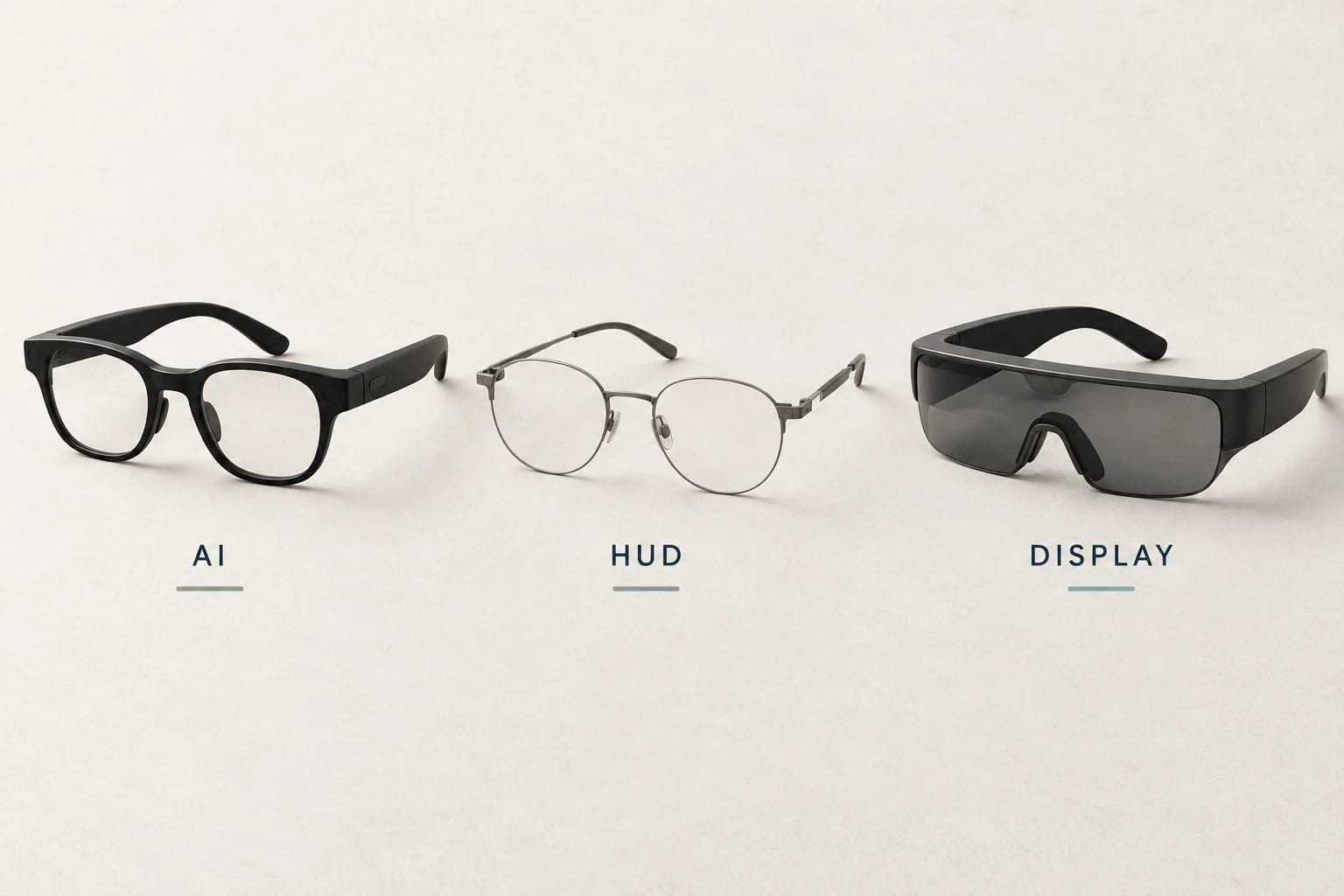
VITURE Beast compatibility with phones and laptops: 2026 guide
This 2026 guide explains how US buyers can connect VITURE Beast glasses to phones, Steam Deck, and laptops, covering ports, adapters, compatibility limits, and setup essentials.
VITURE Beast compatibility with phones and laptops: the short answer
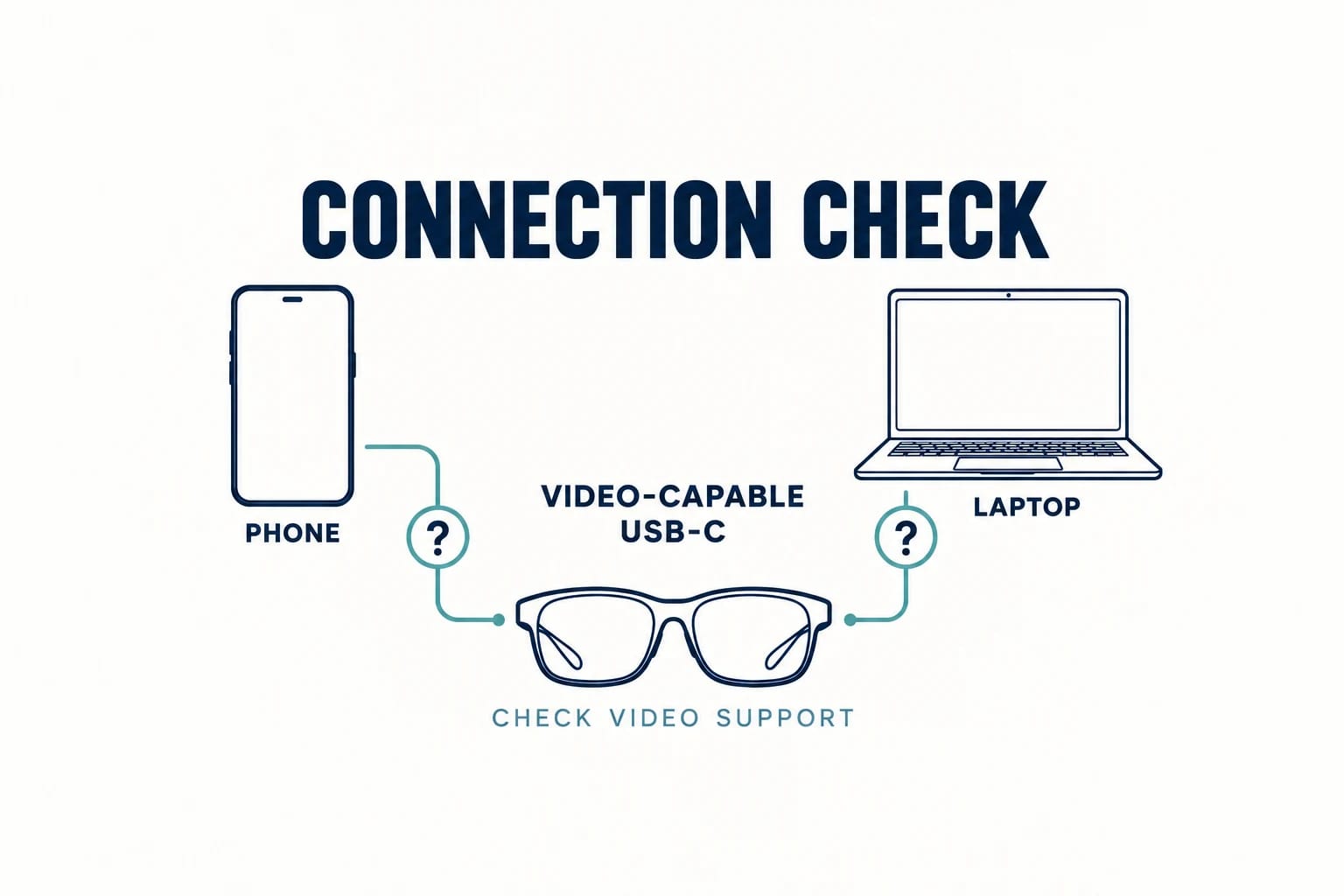
VITURE Beast compatibility with phones and laptops comes down to one question: can your source device send video over its connection? A video-capable USB-C port can provide the simplest route, while HDMI devices generally need a compatible dock-assisted path. The glasses themselves do not make every USB-C phone, tablet, or computer video-ready.
What must be true before a direct USB-C connection can work
For a direct connection, the host’s USB-C port must support video output, commonly described as DisplayPort over USB-C or DisplayPort Alt Mode. You also need a cable designed for the needed video-and-power connection, not merely a charge-only USB-C cable. Confirm support in the specifications for your exact device model, since features can vary within the same product family.
The three connection paths: direct USB-C video, HDMI through a dock, and optional software features
Think of Beast setup in three separate layers. First is direct USB-C video from a compatible phone, laptop, or handheld. Second is dock-assisted HDMI for HDMI-output computers and consoles. Third is optional software functionality, including platform-dependent SpaceWalker features. A device can work as a display source without supporting every software feature, so do not treat display output and app compatibility as the same promise.
Why a USB-C port alone does not confirm video output
USB-C describes the connector shape, not every capability behind it. A USB-C port may handle charging and data while lacking video output. Before buying, look for explicit wording such as “DisplayPort Alt Mode,” “DisplayPort over USB-C,” or external-display support in the host manufacturer’s documentation.
VITURE Beast phone compatibility: Android requirements and advanced iOS setup
Android phones need DisplayPort over USB-C
For an Android phone to connect directly, its USB-C port needs DisplayPort video output. This excludes many USB-C phones whose ports are limited to charging and data. A compatible Android handset may offer the cleanest mobile arrangement, but the phone’s port specification—not the presence of USB-C alone—decides whether direct video is possible.
How to verify whether a phone's USB-C port carries video
Start with the technical specifications for your exact carrier and storage variant, then check the support documentation for external display output. Search for DisplayPort Alt Mode, USB-C display output, or a wired external-display feature. If the manufacturer does not explicitly state video output, treat compatibility as unconfirmed rather than assuming an adapter will create that missing capability.
Why iOS features can require an XR Charging Adapter Ultra or Mobile Dock Mini
VITURE describes the full iOS SpaceWalker experience as requiring either its USB-C XR Charging Adapter Ultra or Mobile Dock Mini. That is a feature-and-accessory requirement, not a blanket statement that every iPhone, iPad, app, and cable combination works identically. Check the intended iOS device, its connector type, the accessory generation, and the specific SpaceWalker feature you want before placing an order.
Confirm the intended app and accessory path before buying
Decide whether you only need a large private display or specifically want software features such as virtual screen arrangements. Then verify that your phone, operating system, planned app, and required accessory all belong to the same supported path. This avoids buying a dock for a feature your particular phone or app configuration does not support.
VITURE Beast laptop compatibility: check USB-C video before connecting
Direct USB-C laptop connections: what to look for
A laptop can connect directly when its USB-C port supports display output. Look for DisplayPort over USB-C, Thunderbolt with display capability, USB4 documentation that explicitly includes video output, or the manufacturer’s statement that the port supports an external display. A Thunderbolt or USB4 label can be encouraging, but the laptop’s own port documentation remains the deciding reference.
When an HDMI-equipped laptop needs a compatible dock or adapter path
If the laptop offers HDMI but lacks a video-capable USB-C port, plan on a compatible dock-assisted HDMI route rather than a simple passive cable. HDMI sends video differently from USB-C DisplayPort output, so a basic connector-shaped adapter is not necessarily enough. Match the accessory to the glasses’ supported HDMI input path and the laptop’s actual output port.
A practical pre-purchase port checklist for Windows laptops and Macs
For either Windows laptops or Macs, verify the exact model year and port layout instead of relying on the brand name. Check whether the chosen USB-C port supports external video, whether another display is already using the available video bandwidth, and whether you need HDMI through a dock. If your plan includes SpaceWalker, separately confirm availability for your operating system and the feature you expect to use.
Steam Deck and VITURE Beast compatibility: handheld PC connection checklist
Steam Deck and Steam Deck OLED in the official compatibility listing
VITURE’s official Beast compatibility materials list both Steam Deck and Steam Deck OLED as direct handheld connections. The same listing includes the ROG Ally. This is useful confirmation that these handheld categories are part of VITURE’s intended use cases, but it does not replace checking your cable, software state, and any connected accessories.
Manufacturer bundle page states that Beast connects directly to handheld consoles such as Steam Deck and ROG Ally and lists SpaceWalker on iOS, Android, macOS, and Windows.
VITURE - VITURE Beast Duo Pack
What to check before using a handheld PC directly
Start with the handheld’s USB-C display capability and use a cable intended to carry video. Remove unnecessary hubs while troubleshooting, because a dock, charger, capture device, or low-spec cable can change the connection path. If you need simultaneous charging, confirm the specific power-and-video accessory arrangement rather than assuming every USB-C hub will pass the needed signal.
ROG Ally support and the limits of a compatibility-table listing
A compatibility-table listing indicates that the ROG Ally is an expected host, not that every game, launcher, overlay, resolution setting, or third-party accessory will behave the same way. Treat the listing as a starting point. Check your exact Ally model, port condition, installed accessories, and whether your intended use is straightforward display output or an optional software feature.
VITURE Beast HDMI compatibility for consoles and computers
Why HDMI sources need a dock-assisted connection path
Beast uses USB-C for its display connection, while HDMI sources output through HDMI. That difference is why an HDMI laptop, desktop, or console needs a supported dock-assisted connection path. Do not expect a bare HDMI-to-USB-C cable to solve the problem unless it is specifically designed for this display use case and is part of the supported accessory setup.
Console sources listed in the official dock table
VITURE’s official dock table identifies Switch, Switch OLED, Switch 2, PlayStation 4, PlayStation 5, Xbox, and PCs as HDMI-path use cases. The listing distinguishes direct USB-C handheld support from HDMI-assisted console and computer connections, which is the key buying distinction for a mixed gaming setup.
Switch, Switch OLED, Switch 2, PlayStation, and Xbox: verify the exact setup
For Nintendo Switch models, confirm that you have the appropriate docked video-output arrangement. For PlayStation and Xbox, plan around the console’s HDMI output and the compatible VITURE dock path. Verify the accessory generation before checkout, especially if product names are similar, because an older cable or adapter may not match the connection path described for Beast.
VITURE Beast setup essentials: cables, accessories, software, and prescription needs
Match the cable and adapter to the host connection path
Buy around the host device, not around the connector’s appearance. A video-capable USB-C phone, laptop, or handheld needs a suitable USB-C video connection. An HDMI computer or console needs the dock-assisted HDMI path. An advanced iOS setup may need the XR Charging Adapter Ultra or Mobile Dock Mini for the desired experience. Keeping these paths separate prevents most compatibility mistakes.
Use VisionPair 3DoF screen positioning without assuming an app is required
VITURE says Beast includes VisionPair 3DoF screen positioning without requiring an app. That built-in positioning feature should not be confused with every broader SpaceWalker function, which can depend on the host platform and accessory setup. Consider built-in positioning and optional software tools as separate parts of the experience.
Manufacturer product page lists a 58-degree field of view, 1200p resolution, up to 120 hertz, 1,250-nit brightness, USB-C connection, and no diopter adjustment.
VITURE - VITURE Beast XR Glasses
Prescription lens frame included; corrective lenses cost extra
The prescription lens frame is included, but corrective lenses are an additional purchase. Budget for the lens order and allow time to confirm the prescription requirements with the lens provider. This matters more than a minor cable saving if you need correction to use the display comfortably.
No built-in diopter adjustment: plan vision correction before checkout
Beast does not include built-in diopter adjustment. If you rely on prescription correction, determine whether an insert with corrective lenses is appropriate before ordering.
VITURE Beast compatibility checklist before a US purchase
Five details to confirm: host, video port, accessory generation, app, and prescription insert
Use this short pre-purchase check to avoid the common mismatch between device and accessory:
- Identify the exact host model: phone, laptop, Steam Deck, ROG Ally, console, or desktop.
- Confirm its actual video output: USB-C DisplayPort video or HDMI.
- Match the cable, dock, or adapter to that path and its accessory generation.
- Confirm the intended app or SpaceWalker feature on your chosen operating system.
Also decide whether you need a prescription insert and add the corrective-lens cost to your budget. Compatibility is strongest when every part of the chain is known: host port, cable or dock, software goal, and vision setup.
How to interpret vendor specifications and US price observations
VITURE’s US Beast page listed a $549 price and US shipping when checked on September 26, 2026. The page also advertises a 58-degree field of view, 1200p resolution, up to 120Hz refresh rate, and 1,250-nit peak brightness. Those are manufacturer specifications, not independent measurements, and “4K-like” language should not be read as native 4K resolution. Treat pricing as an access-date observation; taxes, promotions, delivery charges, and checkout availability can change.
Build your shortlist
Review the VITURE Beast catalog entry before buying, then use the Finder to check your host and vision needs. Compare it with XREAL One Pro side by side.
For the category decision, read AI glasses vs display glasses: which type should you buy?.
Sources and notes
Research sources and verification date
Official Beast product and compatibility pages checked September 26, 2026. Prices and shipping options may change at checkout. Specifications are manufacturer claims. This is a researched guide, not a hands-on device test.