
XREAL One Pro vs. 1S: Which Fits Laptop Work?
View larger image (opens in a new tab)
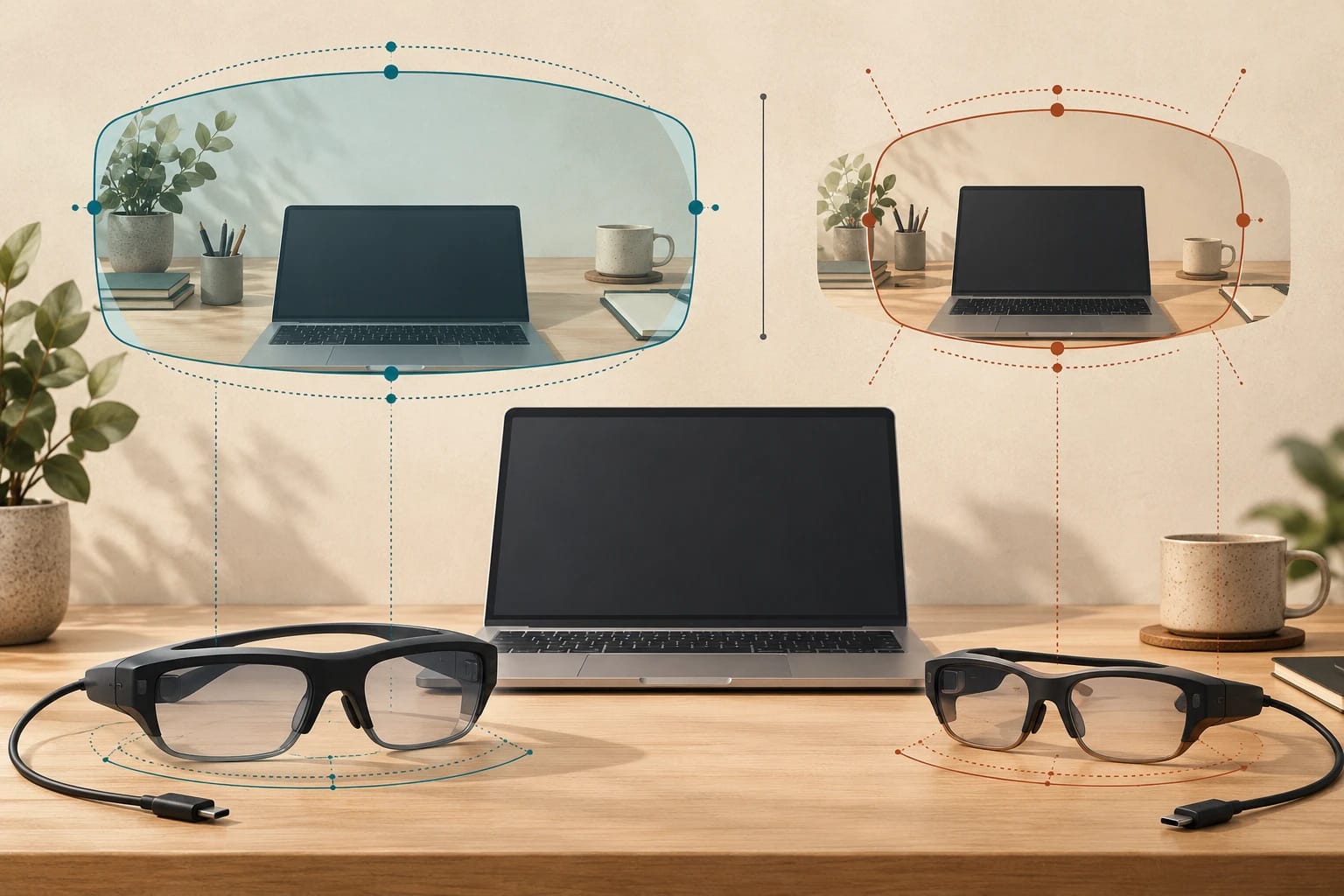
XREAL’s October 28 guide favors One Pro for its wider view and M/L fit options. The lower-priced 1S may suit simpler laptop work if you can read your usual text comfortably. Both need a compatible video source. This comparison uses XREAL’s published information, rather than independent testing.
Read the original source for the full details.
XREAL - AR Glasses for Productivity: Make the Text and Workflow Work
Compare the published differences
XREAL’s figures show the trade-off between price, weight and viewing area:
Swipe or scroll sideways to see all columns.
| Detail | One Pro | 1S |
|---|---|---|
| Field of view | 57° | 52° |
| Weight without cable | 87g | 82g |
| Screen positioning | X1 chip; Anchor and Follow modes | X1 chip; built-in screen positioning |
| US price on October 28, 2026 | $539 | $399 |
One Pro lists M (57–66mm) and L (66–75mm) fit ranges. IPD means the distance between your pupils. At those checked prices, its wider view costs $140 more. A wider view alone cannot tell you whether text will look clearer to your eyes. Prices exclude applicable tax and separately selected items.
Check your laptop and layout
Check that your laptop’s USB-C port supports video output. The connector alone is not enough. Confirm the supported display mode for your exact laptop and operating system.
For One Pro on a Mac, XREAL describes built-in Anchor mode, supported Ultrawide output and macOS display settings. Ultrawide gives you one wide desktop for side-by-side windows. It does not automatically create separate virtual monitors. Select an extended desktop if you want extra workspace instead of a copy of your laptop screen.
Virtual-monitor software is a separate setup. Check explicit support for your glasses and operating system before relying on it.
Try your real work before buying
XREAL suggests testing your usual documents and working position:
- Check fit and any prescription insert. Read the center, corners, menus and spreadsheet labels at your normal zoom.
- Edit for 15 minutes. If comfortable, continue for 30–45 minutes while checking keyboard access, cable pull and frame pressure.
- Disconnect and reconnect. Check how easily you can restore your working layout.
These trial times are suggestions, not endurance claims. Keep your laptop screen or monitor available if a required task fails.
Sources and notes
Sources and notes
Based on the cited source; this is not a hands-on test.