
RayNeo at 120Hz on Steam Deck and ROG Ally: Setup and Checks
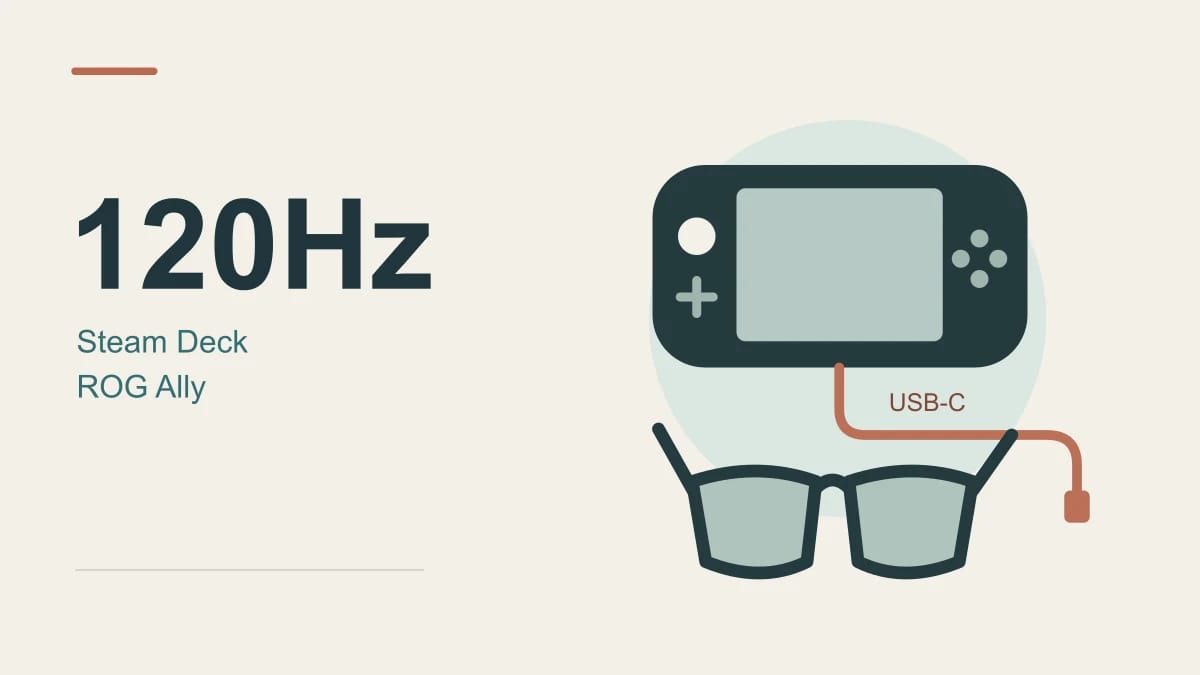
A 120Hz setup needs three things to agree: the glasses, the video connection and the handheld's external-display settings. Selecting 120Hz also leaves the game responsible for rendering enough frames to benefit. This guide covers the connection checks, SteamOS settings and Windows 11 settings for compatible RayNeo glasses with Steam Deck, the original ROG Ally and ROG Ally X (2024).
Check the exact glasses and handheld pairing
For Air 3s and Air 3s Pro, RayNeo's compatibility list names Steam Deck, Steam Deck OLED, ROG Ally Z1, ROG Ally Z1 Extreme and ROG Ally X. The manufacturer also cautions that software and regional device variations can affect compatibility.
GT and GT Max need a more careful buying decision. RayNeo's 120Hz tutorial includes those models in its handheld instructions, but its separate ROG Ally guide says their product compatibility tables do not explicitly name the Ally. Ask RayNeo to confirm your exact pairing before buying GT or GT Max for that purpose. A video-capable port alone does not settle model-specific support.
Choose the external display mode on Steam Deck
Connect a supported pair using the video-capable USB-C cable supplied with the glasses. With the external display detected, open SteamOS Settings > Display. RayNeo's tutorial directs users to disable automatic external resolution when necessary and select the 1920×1080 option with 120Hz. These choices apply to the connected glasses.
Valve's docking guidance confirms that resolution and refresh overrides live in the Display menu. In Gaming Mode, the Deck's own screen normally switches off when an external display connects; use Desktop Mode if you need multiple screens. If the requested mode fails, try a lower refresh rate to isolate a cable, adapter or display limitation.
Select the glasses in Windows on ROG Ally
ASUS documents DisplayPort support on the original Ally's USB-C combo port. The 2024 Ally X has two USB-C ports with DisplayPort and power-delivery support, giving you a separate connection for charging when the glasses occupy one.
After Windows detects the glasses, press Windows + P and choose the display arrangement you want. Set the glasses as the target before opening the game, so you can check which screen it uses.
- Open Settings > System > Display and select the external display.
- Use 1920×1080 for the RayNeo models covered by the 120Hz tutorial.
- Open Advanced display and choose 120Hz if it appears.
- Check the displayed resolution again after changing the rate.
Microsoft explains that available refresh rates depend on the connected display. A rate marked with an asterisk can change the resolution. If 120Hz is absent, troubleshoot the connection rather than assuming the glasses are receiving it.
When 120Hz is missing or the game still feels unchanged
- Air 3s or Air 3s Pro: RayNeo also requires the glasses' own Refresh Rate setting to be set to 120Hz. Use the left-temple menu and volume controls to select it.
- GT or GT Max: RayNeo specifies up to 120Hz for 2D; its 3D mode is limited to 60Hz.
- Black screen: reconnect the cable and check every adapter's video support. Valve's External Display Safe Mode provides a low-resolution, low-refresh starting point when the Deck cannot establish a usable picture.
- Picture works, motion does not improve: check the game's frame cap and performance settings. The selected display rate does not guarantee 120fps from the game.
For a charging dock or hub, verify both video output and power delivery. Valve notes that accessory power requirements can reduce the power available to charge the Deck. Establish a working direct connection first, then add accessories one at a time.
Sources and verification
Manufacturer setup, compatibility and operating-system documentation were checked on October 28, 2026. This is a researched setup guide; we have not tested these device combinations ourselves. The linked guidance supports the steps above, with the GT and GT Max documentation limitation stated explicitly.